Controller not detected on PC? Fixes for Xbox, PlayStation and Switch
The pad lights up, Windows plays its connect sound, and the game still says "press any key". When a controller is not detected on PC, the first job is to find out who cannot see it: Windows, the browser, or only the game.
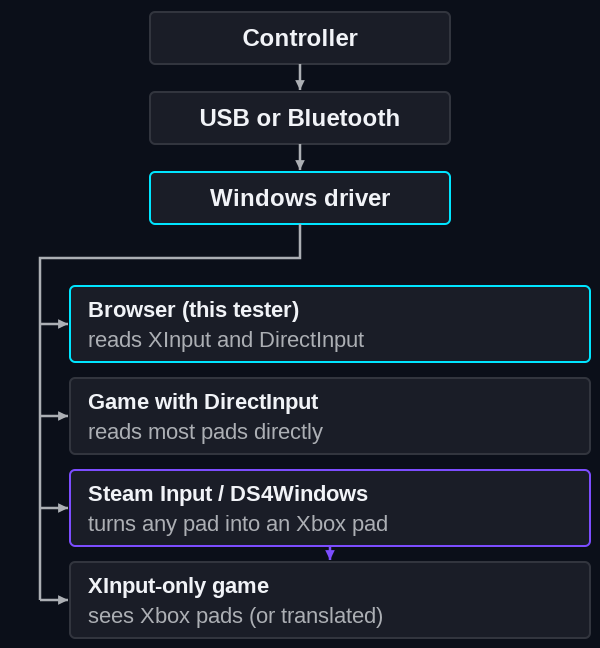
Each of those layers sees the pad differently, so the same controller can work in one place and be invisible in another. Check them in order and you will usually find the broken link in a few minutes.
First question: does anything see it?
- Windows. Press Win+R, type
joy.cpland press Enter. If your pad is listed under Game Controllers, Windows has a driver for it. Not listed? Check Device Manager for a device with a warning sign. - The browser. Open the gamepad tester and press a button on the pad. If its chip appears and buttons light up, the hardware and the connection work.
- The game. If Windows and the tester see the pad but the game does not, the problem sits between the two: usually XInput versus DirectInput, or an app holding the pad.
Cable, port and hub
The most common cause I see is a charge-only USB cable. It powers the pad, so the light comes on, but it has no data wires. Try the cable that came with the pad or one you know carries data. Then try a USB port on the back of the PC, straight on the motherboard; front-panel ports and unpowered hubs are where flaky connections live. If the pad works on one port and not another, you have your answer.
Bluetooth pairing
A pad that was paired before and now connects without input usually needs a fresh pairing. Remove it in Windows Bluetooth settings, then put the pad in pairing mode and add it again:
| Controller | Pairing mode | What to check |
|---|---|---|
| Xbox Wireless Controller | Hold the small pair button on top until the Xbox button flashes fast | Early Xbox One pads have no Bluetooth: cable or Microsoft's wireless adapter only. Update in the Xbox Accessories app if it pairs but shows no input |
| DualSense (PS5) | Hold Create + PS until the light around the touchpad blinks quickly | Windows lists it as "Wireless Controller"; many games need Steam or a translator |
| DualShock 4 (PS4) | Hold Share + PS until the light bar double-flashes | Same as DualSense |
| Switch Pro Controller | Hold the sync button on top, next to the USB-C port | Mostly DirectInput; Steam Input helps in games |
| Generic USB pad | Cable only, or its own dongle | Look for an X / D mode switch or button combo |
A pad paired to a console often reconnects to it instead of the PC when you press the home button. Switch the console off or unplug it while you pair with the PC.
Apps that grab the pad
Steam, DS4Windows and some maker apps can take a controller over. Steam Big Picture can hold a pad on Windows, and DS4Windows has an option that hides the real PlayStation pad so games only see the virtual Xbox pad it creates. That is useful when it works and confusing when you forget it is running. The other symptom is double input: the game sees the real pad and the virtual one, so every press counts twice. Close these apps fully (check the system tray), unplug the pad, plug it back in and test again.
XInput versus DirectInput
Windows has two ways for games to read a controller. Xbox pads speak XInput, which nearly every PC game understands. PlayStation pads, the Switch Pro Controller and many generic pads present themselves as DirectInput or plain HID devices. A browser reads both kinds, so a pad can work perfectly in the tester and still be ignored by a game that only reads XInput.
Three ways around it:
- Steam Input. Turn on support for your controller type in Steam's controller settings, and games launched through Steam receive it as a pad they understand.
- DS4Windows for DualShock 4 and DualSense outside Steam: it creates a virtual Xbox pad. Use only one translator at a time.
- The pad's own XInput mode. Many generic pads have an X / D switch or a button combination that changes mode. In X mode the pad shows up as an Xbox-style controller.
When only the browser misses it
Browsers hide a controller until you press a button on it while the page is open and in front. A pad plugged in before the page loaded will not appear until that first press. If it still does not show:
- Click the page once so the tab has focus, then press a face button, not the home button.
- Make sure the address starts with https; some browsers expose controllers only on secure pages.
- Open the tester in its own tab, not inside another site's frame; embedded pages can be blocked from reading controllers.
- Try Chrome or Edge if another browser shows nothing.
- Close Steam and DS4Windows, reconnect, press a button again.
My quick order for any pad
Data cable on a rear port, then joy.cpl, then the tester, then close every controller app, then re-pair Bluetooth, then think about XInput. A PS3 DualShock 3 and some cheap pads need a separate driver before Windows or any browser sees them at all, so for those, look for the driver first.
joy.cpl, the tester and another PC all see nothing on two different data cables, suspect the pad's USB port or its board, not your settings.Things people ask
Why does my controller work in the browser but not in a game?
The browser reads both XInput and DirectInput pads, while many games read only XInput. Steam Input, DS4Windows or the pad's own XInput mode makes it look like an Xbox controller.
Why is my controller charging but not detected?
Most often the cable carries power but no data. Try a cable you know transfers data and a USB port on the back of the PC.
Why do my button presses count twice in games?
Two layers are reporting the same pad: the real controller and a virtual one created by Steam or DS4Windows. Use only one of them.
Do I need drivers for a PS5 controller on PC?
No extra driver is needed for Windows to see it, but many games expect an Xbox pad, so they need Steam Input or a translator to use it.